What Is a Website Migration?
A website migration is any major change to your site’s technology, structure, or location. That could mean switching to a new platform, changing your domain name, restructuring your content, or even just moving to a new host.
The scope varies, but the SEO risk comes down to one question: are your URLs, content, or metadata changing or moving? If the answer is yes, you need a plan.
Four common SEO risks during migration:
Lost backlinks. We regularly see pages get deleted or left out of a migration without anyone realizing they were earning valuable backlinks from other sites. That’s authority you spent years building, gone without a trace. And when URLs do change without proper redirects, you lose the link equity those pages carried. Every broken redirect is authority left on the table.
Indexing issues. Search engines need clear signals about which pages matter and where they went. Without proper redirects and an updated sitemap, you’re leaving Google to figure it out on its own. In the meantime, your pages can disappear from search results entirely while you wait for Google to catch up.
Technical breaks. Metadata that doesn’t transfer, structured data that breaks, page speed that tanks: these aren’t minor inconveniences. They hit your rankings immediately, and the longer they go unnoticed, the harder they are to recover from.
Downtime. Some downtime during a migration is normal, but if your site stays inaccessible for an extended period, search engines may start dropping pages from their index. Plan your migration during low-traffic hours and have a rollback plan ready in case something goes wrong.
These problems don’t require complex solutions. The key is planning your website migration ahead of time.
Practical Steps to Keep Your SEO Intact During a Website Migration
Every migration is different, but the process for protecting your SEO follows the same basic steps: know what you have, plan where everything is going, and verify that nothing broke along the way. Here’s how we approach it.
Run an SEO Audit Before the Move
Do these things before you start the actual migration process:
- Run a complete site crawl and export to a Google Sheet. You can use tools like Screaming Frog and Semrush to catalog every URL so you can map your pages, internal linking structure, and get a high-level view of on-page elements that need to be transferred.
- Map out your top-level pages. Once you have your Google Sheet filled out, you can take a closer look at your top pages to make sure everything migrates correctly. This includes schema, metadata, SEO titles, alt tags, and more.
- Record your current rankings. Track where your top keywords rank in Google Search Console before anything moves. Without this baseline, you won’t know whether a post-migration dip is normal or a sign that something broke.
- Back up everything. Complete a full database backup, all site files, and a working copy of your current site. If something breaks, this gives you a way back.
A professional website SEO audit can also help establish these benchmarks. Without these records, you’re guessing about what worked and what didn’t later. WordPress plugins like Duplicator, UpdraftPlus, and Solid Backups (formerly BackupBuddy) can help with the backup process.
Building Out Your URL Redirect Map
Now that you have your site crawl exported and your backups in place, it’s time to build your redirect map. This is exactly what it sounds like: a spreadsheet that matches every old URL to where it should go on the new site. If you skip this step or try to set up redirects from memory, you’re going to miss things.
Your Google Sheet from the crawl is your starting point. Add columns for the new URL, page priority based on traffic and backlinks, redirect status, and any notes for pages that need special handling.
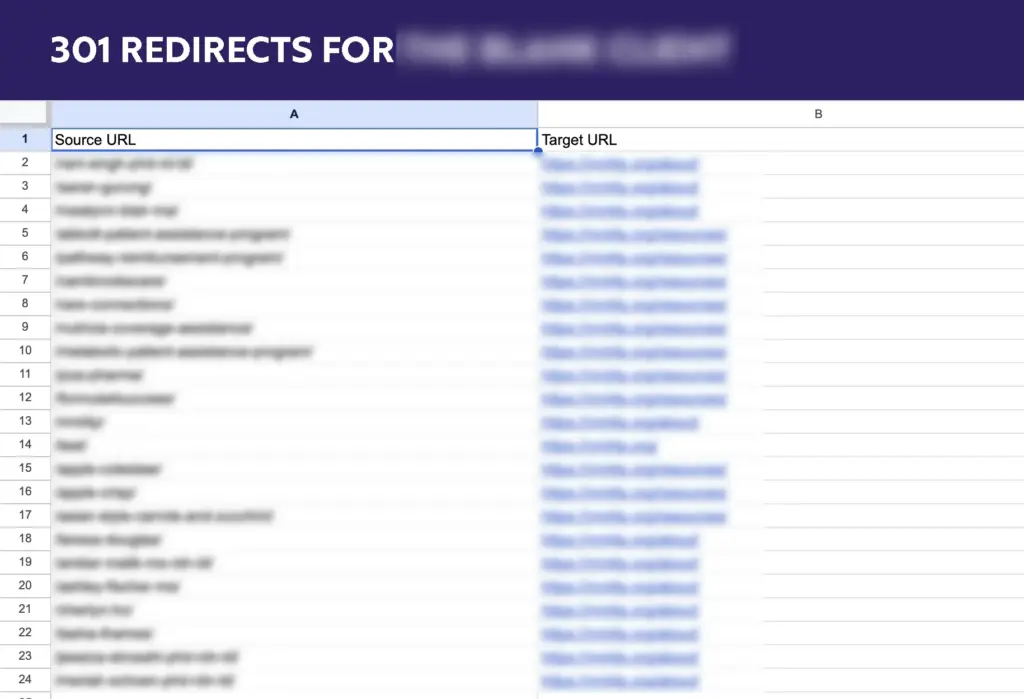
For larger sites, this spreadsheet can run into the thousands. The good news is you don’t have to map every single one manually. You can use regex-based redirect rules to dynamically handle pages that follow predictable URL patterns, like an entire blog directory or product category. For the pages that don’t fit a clean pattern, start with your highest-traffic pages and strongest backlinks first, then work your way down. Either way, every URL you don’t account for is a potential 404 waiting to greet your visitors after launch. If you’re using a CMS like WordPress, there are several plugins that can help with this, including RankMath, Redirection, and Yoast.
A few redirect mistakes to avoid:
- Don’t redirect everything to the homepage. Each old URL should point to its closest equivalent on the new site. Mass redirecting to your homepage tells search engines you deleted all that content.
- Watch for redirect chains. If Page A redirects to Page B, which redirects to Page C, you’re making search engines and users work too hard. Each redirect should point straight to its final destination.
- Test as many redirects as you can before launch. A few minutes of testing prevents hours of cleanup later.
Don’t Let Your On-Page SEO Get Lost in the Migration
You also need to migrate on-page SEO elements with your content. That means things like title tags, meta descriptions, header structures (H1, H2, H3), image alt text, structured data markup, and internal links all need to make the move.
Unfortunately, these elements don’t transfer automatically during most migrations, and no single plugin fully automates the process. Tools for WordPress like Yoast and RankMath can export and import SEO metadata, which helps, but you’ll still need to manually verify that everything is transferred correctly. Switching your CMS is especially prone to losing on-page SEO items since different platforms store and render metadata differently. I like to use checklists so I know I’m covering every on-page element on every page.
What to Do After Your Migration Goes Live
Now that the hard part is out of the way, it’s all about making sure your migration didn’t hurt your rankings. If you’ve made significant changes to your website’s URL structure, whether that’s changing the domain name, deleting pages, or using a different naming convention for your URLs, you’ll want to resubmit your sitemap to Google so it can index the new site properly.
You can use Google Search Console for free to monitor your website’s performance and check for any errors that may come up. Keep an eye on crawl errors, indexing status, and any unexpected drops in keyword rankings. Some dips are normal in the first few weeks, but if you’re seeing 404 errors on pages that should be redirecting or your new pages aren’t getting indexed, those are signs something needs attention.
Don’t forget to update any external links you control — social media profiles, email signatures, directory listings, and your Google Business Profile. For backlinks from other sites, it’s worth reaching out to the site owners and asking them to update their links, especially for high-value pages.
Make sure to download our SEO website migration checklist so you don’t miss anything.
When You Need More Than A Checklist:
Most of what we covered is plannable work. But some migrations are complex enough that the cost of getting it wrong outweighs the cost of getting help. It’s like WordPress security – you can cover the basics, but when your business depends on reliability, expert help pays for itself.
If you’re planning a migration and want to make sure your SEO stays intact, we can help.
Frequently Asked Questions
Should I set up a testing site before going live?
Absolutely. Set up a staging environment that mirrors your production site and run through the migration there first. You want to verify that redirects actually work, pages load correctly on mobile, forms submit properly, and structured data validates. Staging is standard practice for any migration where URLs or content are changing, and it’s how you catch problems that would otherwise show up after launch.
What causes the biggest traffic drops after website migrations?
Technical issues cause immediate, sharp drops. Broken redirects send users to 404 pages and search engines can’t find your content. Content problems cause gradual declines as engagement metrics worsen. The distinction matters because technical fixes restore traffic quickly, while content issues require strategic SEO work to diagnose and correct.
How long should I keep old URLs redirecting after migration?
Indefinitely for high-value pages. Unlike temporary 302 redirects, permanent 301 redirects should stay in place as long as external sites link to old URLs. Removing redirects after six months is a common mistake that breaks inbound links and loses authority you’ve spent years building. Budget for ongoing redirect management as part of your SEO support.
Can I use the same SSL certificate after migrating to a new host?
Not typically. SSL certificates are tied to your domain, but the private key and certificate files live on your current server. Most hosts will have you generate a new certificate rather than transfer the old one. The certificate itself can be issued in minutes using Let’s Encrypt, though DNS propagation to your new host can take 24–48 hours. Let’s Encrypt certificates are free and auto-renew, making them the standard for modern hosting environments. Plan for this in your migration timeline.
Can I reverse a migration if something goes catastrophically wrong?
Yes, if you maintained proper backups and didn’t delete the old site. Point DNS back to your old server and you’re live again within 24–48 hours. This is why we never delete old sites until the new one proves stable for at least a couple of weeks. Having a reliable backup strategy makes reversal possible without data loss.