After building with Beaver Builder for almost 10 years, I’ve picked up quite a few shortcuts that speed up my workflow. Some are obvious once you know them, while others are tucked away in menus you might not check very often. What I’ve found is that most of them follow the same underlying logic: do the structural work once, and let the builder carry it forward.
That’s probably why these shortcuts tend to build on each other. Here’s how I actually use them.
1. Set Up Global Colors and Fonts First
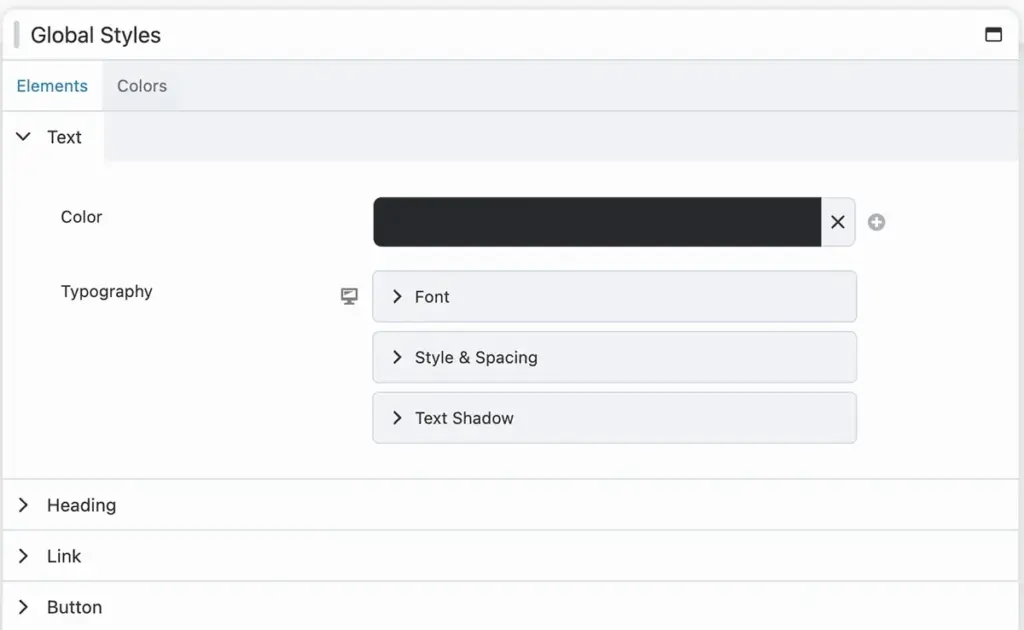
Before touching any modules or rows, I always like to start by establishing the color palette. Ideally you’ve already worked on your colors in tools like Figma or Sketch during any branding updates. Once you set them globally, selecting colors and heading tags gets much faster and intuitive as you build out each page. And you’re setting yourself up for more consistent design.
At Clockwork, we don’t typically wireframe the entire site upfront. We tend to work in a hybrid way where design happens alongside the build. If you take this approach, expect to refine things after you’ve seen the homepage in action. I usually circle back to update heading sizes and check how brand colors read against each other across real sections before moving on.
2. Save Reusable Rows and Modules Early
Once your homepage styling is mostly locked in, you can use Beaver Builder’s saved rows and modules to carry those designs into subpages. Your homepage design and revision process does the heavy lifting on establishing what you do, how users feel about it, and why they should trust you. Your subpages shouldn’t clone your homepage exactly, but having styled elements like call-to-action rows, buttons, and image treatments ready to drop in saves a lot of time during the subpage phase.
One thing I can’t stress enough is to set responsive design before saving anything. This prevents you from copying the same mistake across every page. A button with incorrect margins or text that’s too large on mobile will follow you everywhere if you skip this step.
These reusable elements are the foundation of our building block approach. You design elements once and reuse them strategically rather than rebuilding from scratch each time.
3. Save Pages as Templates
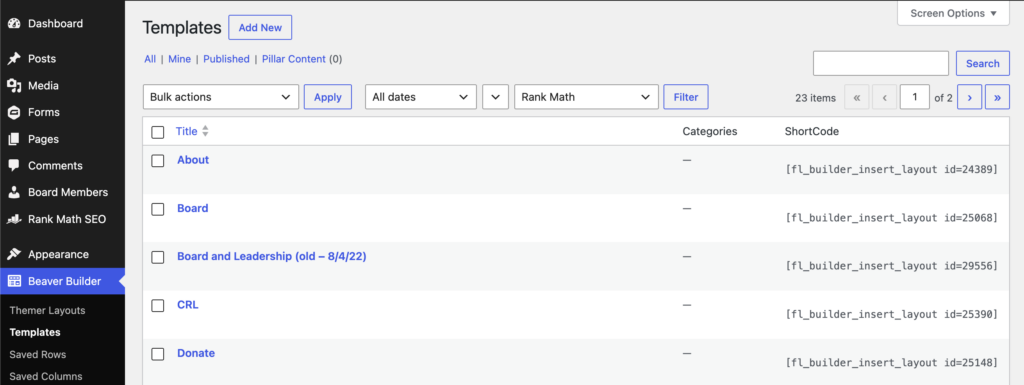
Once you have your subpage design sorted out, that gives you the option to save the entire page as a template. You can then apply the whole structure instead of rebuilding row by row, and use it as a starting point to rearrange things from there. Standardized page design works especially well for lower-level pages like a contact page where users are looking for specific information. You don’t want to experiment too much on these informational pages. Clear messaging is key.
4. Use Beaver Themer for More Than Headers and Footers
Yes, Beaver Themer is a game-changer for header and footer design. It applies the same layout across every page, which reinforces the consistency that builds trust. You can also exclude or customize those elements for special pages.
But Themer can do more than that! You can set up Archive and Single post type templates that apply consistent designs to entire content sections, not just individual pages. When we built GaDOE’s Culinary Hub, Themer was a core tool. The Culinary Hub uses custom post types for recipes, with fields for ingredients, nutrition information, and meal components. A Themer Single template handles how every recipe looks so if you update the design in one place, all of them update automatically. That approach works whether you’re managing 10 recipes or thousands.
5. Save Repeated Content as Global Rows
If you’re adding a newsletter signup row to every page, set it up as a global row. You’ll save yourself the time of adding it to each page individually, and when you inevitably need to update it later, one change carries everywhere. Consistent CTAs like newsletter signups across pages are another good way to build familiarity and trust from one page to the next. This is the same principle as Beaver Themer templates, just for standalone content blocks rather than full pages.
6. Duplicate Instead of Rebuilding

When you’re still figuring out your page layout and you need the same styled element with slightly different content, try duplicating it instead of rebuilding from scratch. You’ll get consistent styling without needing to remember whether your padding was 10px or 12px the first time around. Saving those few minutes for each design element adds up across a full build!
7. The Overlooked Copy/Paste Function
To be honest, Beaver Builder’s copy/paste function isn’t the most intuitive feature, and other page builders like Elementor handle it more smoothly. But it still works. When you need to copy settings or styles from a module on one page to another, open the Advanced tab and use one of the two buttons to add the styling to your clipboard. Then go to the other page and paste it into the same Advanced Settings tab. It’s not the flashiest feature, but it’s very useful when you need it.
8. The Outline Panel for Quick Navigation
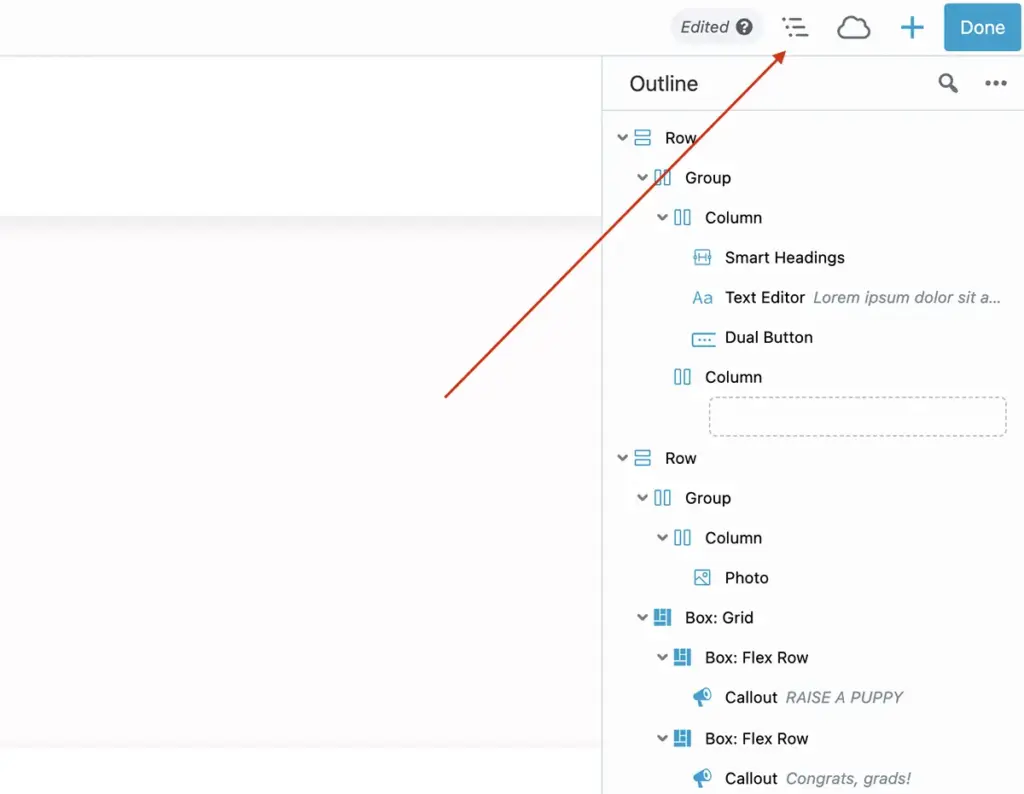
The Outline Panel shows your full page structure in a tree view: rows, columns, modules, all nested properly. You can click anything in the outline to jump straight to its settings. On complex pages, scrolling up and down to find specific elements wastes more time than you’d think. You’ll find the Outline Panel in the Tools menu in the upper right corner of your editing interface.
9. Inline Editing for Fast Text Changes
Double-click any text element to edit it directly on the page without opening the module settings. Inline editing works for headings, paragraphs, and button text–basically any written content across your site. When you’re making quick content updates or catching typos after a review, inline editing keeps you moving without clicking through all the extra panels.
10. Start with Built-In Templates
Beaver Builder includes a library of pre-designed templates for landing pages, services pages, and standard content layouts. These templates aren’t meant to be your final design, but they give you a solid structural starting point. It’s a good way to see what you like and don’t like early on. You can easily replace the content, adjust colors to match your brand, and you have a functional page to work from in minutes. It’s definitely worth knowing the templates are there as a useful starting point instead of reinventing the wheel, but make sure to update with your brand colors, fonts and spacing before rolling out to your live website.
How Beaver Builder Shortcuts Add Up Over Time
None of these shortcuts are major time-savers individually. But when you combine saved rows, global elements, and Themer templates from the start of a project, you build a system rather than a collection of individual pages. That makes a huge difference where your content managers need to update pages without touching the design (or needing a developer to do it).
If you want to see how these tools come together for a full project, our web design services cover the whole process from structure to launch. When a project calls for custom functionality beyond what page builders handle out of the box, our web development services handle those deeper builds.
Not sure where to start?