Our WordPress site builds start out fast at launch. That is part of the appeal. Then plugins accumulate, huge images amass, and your database fills up with years of revisions nobody remembers creating. Before long, pages that used to snap open are grinding, and the cause is not always obvious.
Speed matters more than it used to. Google made Core Web Vitals a confirmed ranking signal, and around 40% of visitors abandon a page that takes more than three seconds to load. Those numbers result in lower rankings, higher bounce rates, and fewer conversions. Most WordPress speed problems trace back to a manageable (but ever-growing) list of fixable issues, and most of them show up repeatedly on sites we inherit from other agencies.
Here are seven sticking points we come across most often, and what to do about each one.
1. Bloated Images Are Doing Damage
Uncompressed images are the most common speed problem we find on new client sites. A photo uploaded directly from a phone can hit 5-15MB and 4,000 pixels wide, even when the page displays it at 600 pixels. The browser downloads the full file on every page load, for every visitor. The workaround is to reduce the file size (a lot) without users ever noticing lower image quality.
It doesn’t take too much effort to resize images to match their display dimensions, compress them to under 500KB, and convert to WebP format wherever possible. Most images shed 80-90% of their file size with no visible quality loss. Michael’s image optimization guide covers the exact tools and processes we use on every client build.
2. Plugin Bloat Adds Up Quietly
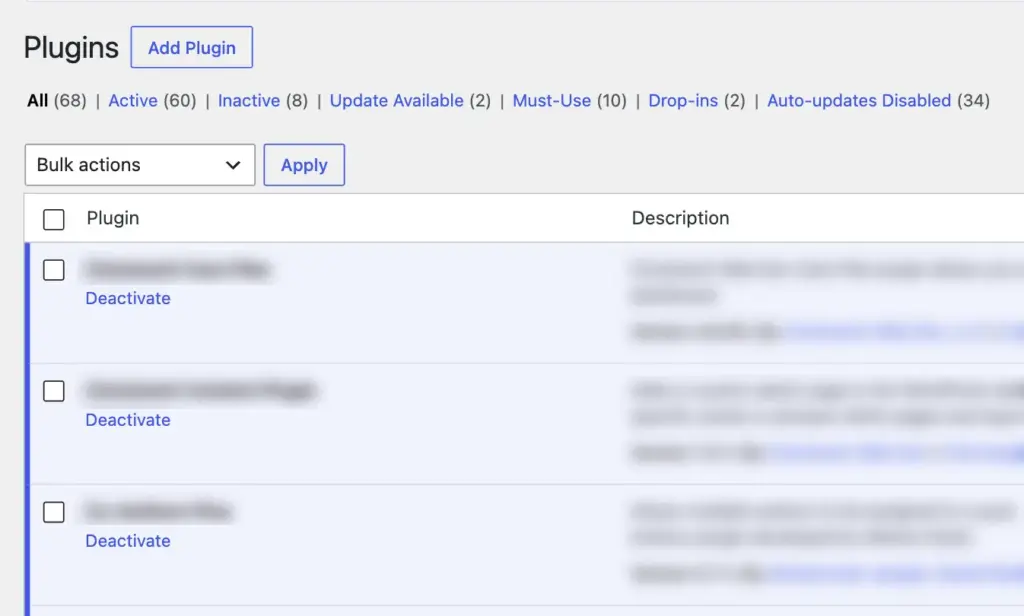
Every active plugin adds overhead, and WordPress installs can collect them steadily over time. A contact form plugin added here, a slider plugin left from a previous redesign, an SEO plugin installed three years ago and never removed. The problem is not the count alone. Plugins that load scripts and stylesheets on every page, regardless of whether those scripts do anything on that specific page, are the ones causing real drag. Try auditing your active plugins and deactivate anything not in current use. Once you are confident you don’t need it, delete it completely rather than just deactivating. For example, running two major SEO plugins simultaneously creates conflicting sitemaps, broken metadata, and occasional fatal errors. Yoast and Rank Math are the usual pairing. Pick one, configure it properly, and remove the other from the site completely.3. You Have No Caching Set Up
Without caching, WordPress builds every page from scratch on each visit, pulling from the database, processing PHP, and assembling the result before anything renders. Caching stores a ready-to-serve version so the server skips most of that work for repeat requests. Server-level caching is the most impactful layer. Browser caching tells visitors’ browsers to keep certain files locally so they skip re-downloading on every visit. Object caching speeds up database queries. Ideally, caching configurations will live in your hosting setup instead of a plugin like WP Rocket. Misconfigured caching can serve stale content or break dynamic functionality, so set it up carefully. When it works correctly, caching delivers some of the most immediate speed improvements on this list.4. Render-Blocking Resources Delay What Visitors See First
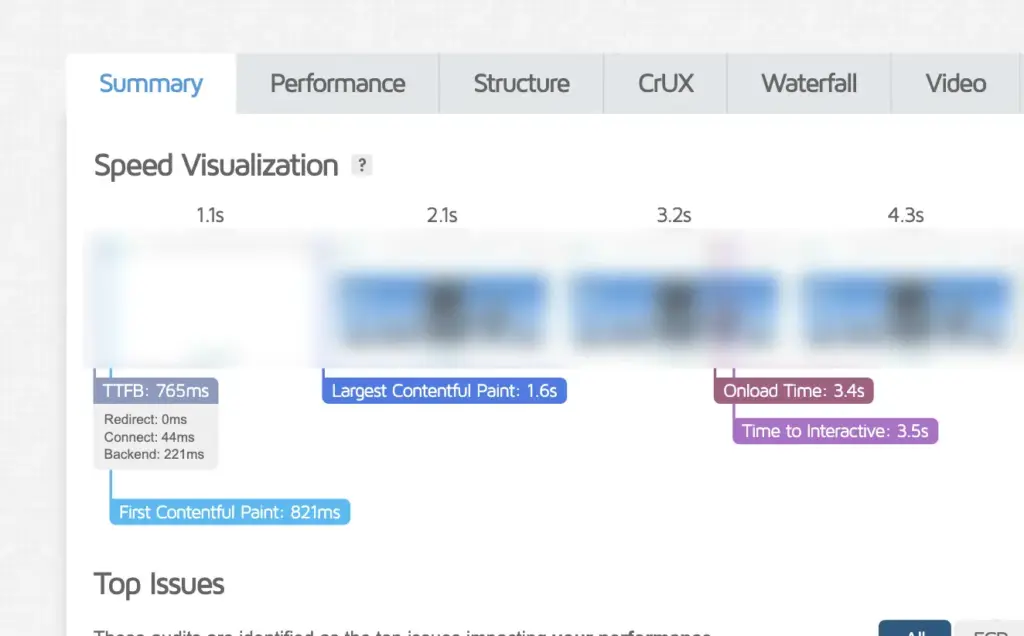
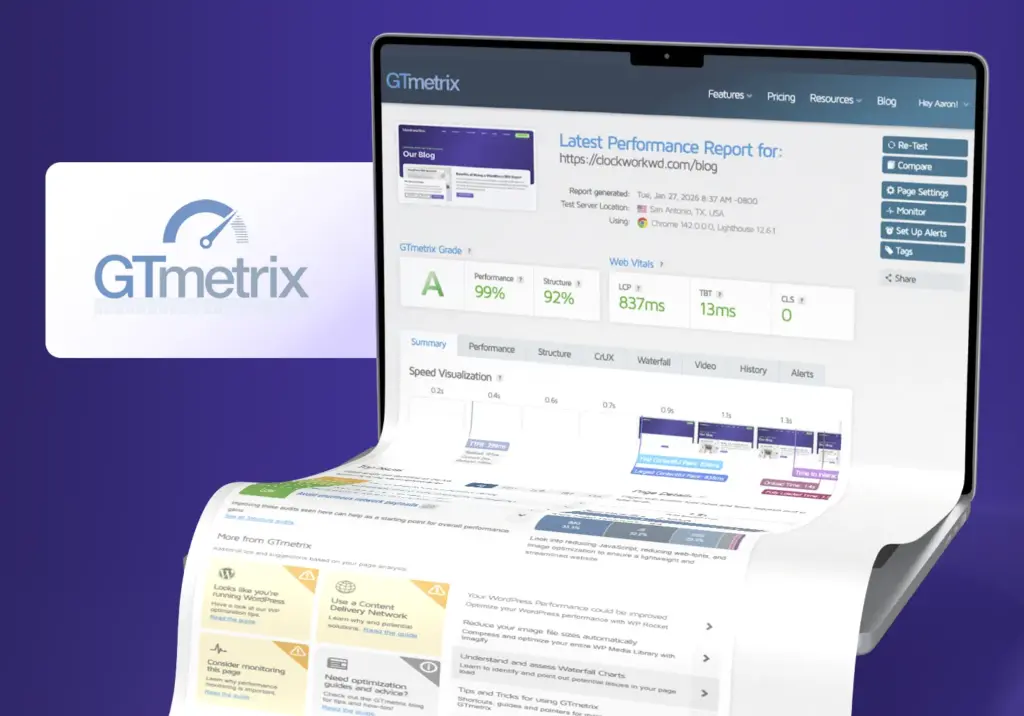
When a browser loads a page, it reads through the code from top to bottom. Any JavaScript or CSS file that needs to fully load before the browser continues causes the visible page load to lag. That pause produces the blank screen some visitors see before content appears. Deferring non-critical JavaScript, eliminating unused CSS, and minifying your style and script files all reduce that wait. Lazy loading images below the fold means the browser fetches that content only when a visitor scrolls to it rather than loading everything upfront. Google PageSpeed Insights flags render-blocking resources specifically and names the files responsible. A caching plugin can handle some of this automatically, but check the report to confirm what is still delaying your initial render.5. No CDN Means Everyone Loads from One Location
Your website files sit on a server in one physical location. Without a Content Delivery Network, every visitor loads from that location regardless of where they are in the world. A visitor in Seattle loading a site hosted in Atlanta crosses more data distance than a local visitor, and that gap shows up in load times. A CDN copies your static files to servers worldwide and serves each visitor from the nearest one. Cloudflare is the most widely used option and offers a free tier covering CDN delivery alongside security and DNS features. Six ways Cloudflare protects your website is worth reading for the full picture beyond speed. Setup takes under an hour and the load time improvements for distributed visitors are immediate.6. Your Database Has Never Been Cleaned Out
WordPress stores considerably more than published content. Every draft, revision, trashed post, expired transient, and spam comment sits in the database until something removes it. Over years of regular use, that accumulation slows the queries running constantly in the background. WP-Optimize handles this reliably, clearing excess post revisions, expired transients, and trashed content while optimizing database tables. Running a one-time cleanup before tackling the other items on this list gives you a cleaner baseline to measure improvements from. Database cleaning will not rescue a fundamentally slow site on its own, but it removes drag that compounds everything else. A free website audit can confirm whether database and performance issues are contributing to your speed problems before you start investigating the server.